The Comprehensive Academic Guide to PDF Tools: Compress, Merge, Split, Convert, and Extract
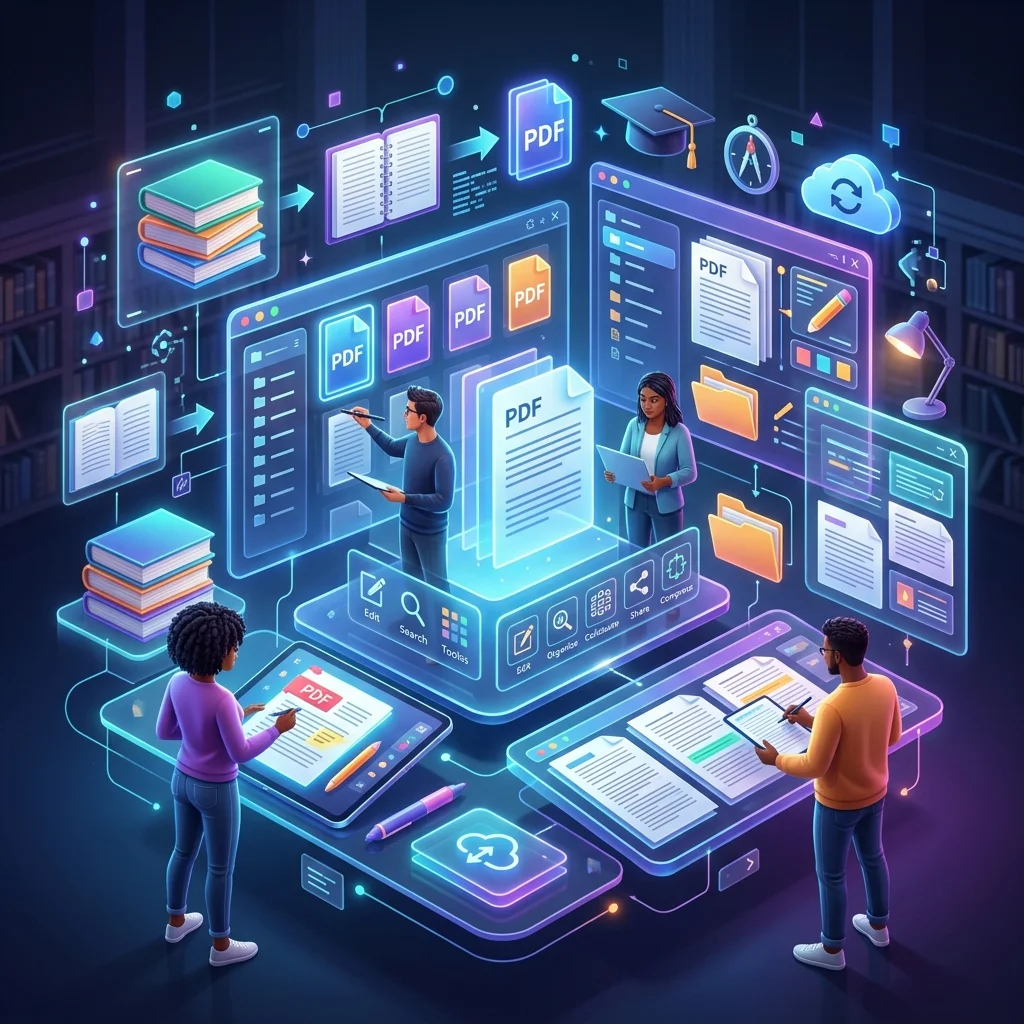
Everything You Need to Know About Academic PDF Tools
PDF files are the backbone of modern academic work — from submitting research on university portals to sharing references with colleagues. But handling them efficiently requires specialized tools that preserve quality and formatting.
This comprehensive guide reviews how to leverage the suite of free PDF tools in Adawati to streamline your daily academic workflow.
PDF Compression: Reducing the Size of Research and Academic Files
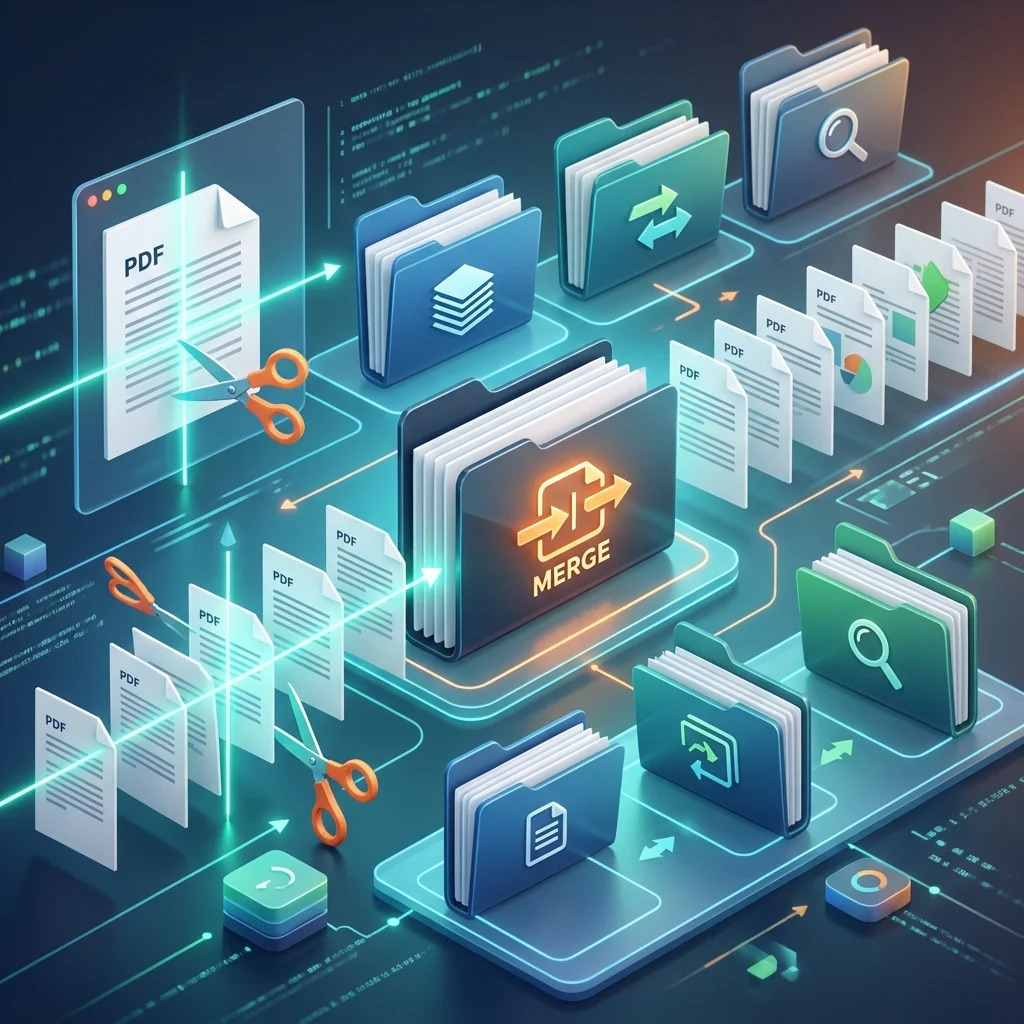
Why Do You Need to Compress PDF Files?
Most university portals like Blackboard, Classera, and Banner impose a maximum limit for uploaded files, usually between 10 to 25 Megabytes. When your research exceeds this limit — especially if it includes images or graphs — you will need to compress it first.
How Does PDF Compression Work in Adawati?
The compression tool in Adawati offers three levels of compression:
- Normal — Reduces size by 20-30% while maintaining the highest quality of images and text. Ideal for researches containing precise graphs.
- Medium — Reduces size by 40-55% with excellent reading quality. The best choice for most academic uses.
- Maximum Compression — Reduces size by 60-75% with acceptable quality. Suitable for files that only need to be read on a screen.
Compress your academic files for free now
Use our free and smart tools to save your time and academic effort.
PDF Merging: Unifying Research Parts into One Document
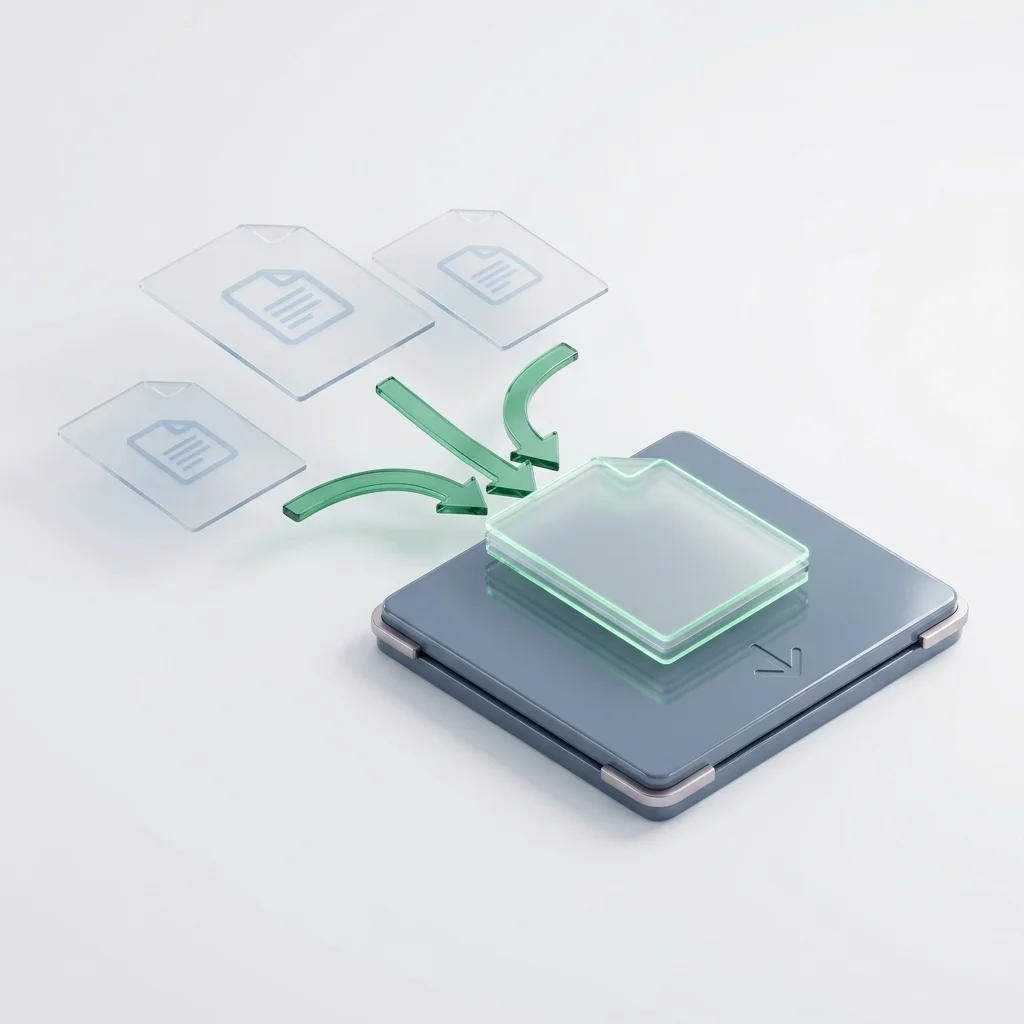
Academic Use Cases
When submitting university research, parts are often prepared in separate files:
- Cover Page — Prepared in Word or PowerPoint and converted to PDF
- Introduction and Body — The main research file
- Appendices and References — Spreadsheets or converted images
- Certificates or Permits — Scanned documents
Instead of sending 4 separate files, use the Merge PDF tool to unify them into one professional document. You can order the files by dragging and dropping before merging to ensure the correct sequence.
Tips for Successful Merging
- Ensure uniform page sizes — Use A4 for all files before merging
- Order files in the required sequence before starting the merge process
- Review the final document to ensure there are no blank or duplicate pages
Merge your academic files into one document
Use our free and smart tools to save your time and academic effort.
PDF Splitting: Extracting Specific Chapters and Pages
When Do You Need to Split a PDF File?
- Extracting a specific chapter from a massive textbook (300+ pages) for focused review
- Separating question pages from answers in past exam papers
- Extracting the cover page or table of contents from a long research paper
- Splitting course notes into smaller parts that are easier to review on the phone
How to Split in Adawati
Specify the required page range (e.g., Pages 45 to 78) and you will get a new PDF file containing only the specified pages. The process is done in seconds and fully preserves the quality of the original text and images.
Split PDF files and extract the required pages
Use our free and smart tools to save your time and academic effort.
Converting Between Word and PDF: Guaranteeing Perfect Formatting
From Word to PDF — Why is it Necessary?
When submitting a research paper written in Microsoft Word, the formatting might change when opened on another device — especially if it contains Arabic fonts or complex tables. Converting it to PDF locks the formatting and ensures the professor sees your research exactly the way you intended.
From PDF to Word — When Do You Need it?
- When you receive a PDF file from your professor and want to quote from it accurately in your research
- When you need to edit a document you received in PDF format
- When you want to reformat the content of an old file
Edit PDF files directly via your browser
Use the Adawati editor to add text, images, and edit pages with absolute ease.
Convert Word documents to PDF with one click
Use our free and smart tools to save your time and academic effort.
Extract Images from PDF: Getting Graphs in Their Original Quality
Prominent Academic Use
When preparing a presentation (PowerPoint) for a graduation project or a lab report, you often need to extract:
- Graphs and Statistics from published research papers
- Tables and Diagrams from reference books
- Illustrations from lecture files
Instead of taking a screenshot, which produces low-quality images, use the Extract Images from PDF tool in Adawati to get the images in their full original quality.
Try free PDF tools in Adawati
Use our free and smart tools to save your time and academic effort.
Real-World Scenarios: How Do Students Use PDF Tools Daily?
Scenario One: Submitting Graduation Research
A female student in the Business School prepared her graduation research in Word — 45 pages with tables and graphs. Resulting PDF file size: 38 MB. The university portal accepts a maximum of 25 MB. Solution:
- Convert Word to PDF to ensure Arabic formatting stability
- Compress PDF at Medium level — New size: 14 MB ✓
- Successfully upload the file to the portal before the deadline
Scenario Two: Reviewing from a Massive Book
A student taking a "Principles of Economics" course — the reference book is 650 pages. He only needs the fifth chapter (pages 120–168) for next week's exam:
- Split PDF to extract pages 120 to 168
- Obtain a small file (only 48 pages) that is easy to read on the phone while commuting
- Save storage space and boost browsing speed
Scenario Three: A Group Project in Engineering
A team of 4 students — each prepared their section as a separate PDF file. They need to submit a single document:
- Order files in the correct sequence (Cover, Introduction, Member Sections, References)
- Merge PDF into one integrated document
- Compress the final output if it exceeds the upload limit
Split your textbook and extract the required chapters
Use our free and smart tools to save your time and academic effort.
Quick Comparison Table: When to Use Each Tool?
| Need | Suitable Tool | |---|---| | Large file won't upload to the portal | Compress PDF | | Unifying separate research parts | Merge PDF | | Extracting a chapter from a massive book | Split PDF | | Submitting an assignment with fixed formatting | Word to PDF | | Editing a received PDF document | PDF to Word | | Getting a high-quality graph | Extract Images from PDF |
Adawati vs. Paid Alternatives
| Feature | Adobe Acrobat Pro | Smallpdf (Paid) | Adawati | |---|---|---|---| | Price | $22/month | $9/month | Completely Free | | Arabic Support | Good | Limited | Excellent — Arabic-first | | File Privacy | Stored on cloud | Stored for 14 days | Deleted within 60 minutes | | Needs Installation? | Yes (Heavy software) | No (Web) | No (Web) | | Compress PDF | ✓ | ✓ (Free limit) | ✓ Unlimited | | Merge and Split | ✓ | ✓ (Free limit) | ✓ Unlimited |
Conclusion: Master PDF Tools and Professionalize Your Academic Workflow
Handling PDF files professionally is not a secondary skill — it is a core part of modern academic competence. With Adawati's free tools, you can accomplish all document management tasks in minutes without the need to install expensive software like Adobe Acrobat or subscribe to paid services.
All tools are completely free, run directly from the browser, and automatically delete your files within 60 minutes to protect your privacy.
Start Now: Try your first PDF tool for free
Use our free and smart tools to save your time and academic effort.